Updates and registration
The app keeps itself up to date and installs a new version only when you say so. This page explains how updates work, how to change the settings, your registration key, and what the app sends over the internet.
Where to find it
| To do this | Where |
|---|---|
| Choose how updates work | Help → Update settings… |
| Look for a new version now | Help → Check for updates |
| See or change your registration key | Help → Registration… |
| Read what stays on your computer | Help → Privacy & data, or click the 🔒 All data stored locally badge in the header |
How updates work
With the default setting, you don't have to do anything until a new version is ready.
- The app checks for a new version shortly after it starts, and every 12 hours while it is open.
- When it finds one, it downloads it in the background. A banner under the header shows Downloading version ….
- When the download is done, the banner says Version … is ready to install.
- Click Restart now to install. Before installing, the app saves a backup of your data and closes cleanly. It then installs the update and opens again.
- Click Later to keep working. The banner hides until the next time you start the app.
Closing the app never installs an update by surprise.

Tip: On the first start of the new version, the app backs up your data again before upgrading it. If anything goes wrong, it puts your data back. See Backup and restore.
After an update
The first time the new version opens, a banner says The app was updated to version … with a What's new button. What's new shows the release notes and a link, See this release on offlineplanning.com. The banner appears only once.
Update settings
Open Help → Update settings… to choose one of three ways:
| Choice | What it does | Good for |
|---|---|---|
| Download updates automatically (default) | Checks and downloads in the background. Nothing changes until you click Restart now | Most people |
| Ask me before downloading | Checks, then shows a Download button | Limited or metered internet |
| Don't check for updates | No connection is made. Use Check now whenever you want | Computers kept offline |
The same dialog also shows:
- Installed version: — the version you have now.
- Last checked: — when the app last looked.
- Check now — looks right away.
- Share app version and language with update checks — on by default. It helps us see which versions and languages are in use. Turn it off and only your registration key goes with update checks.
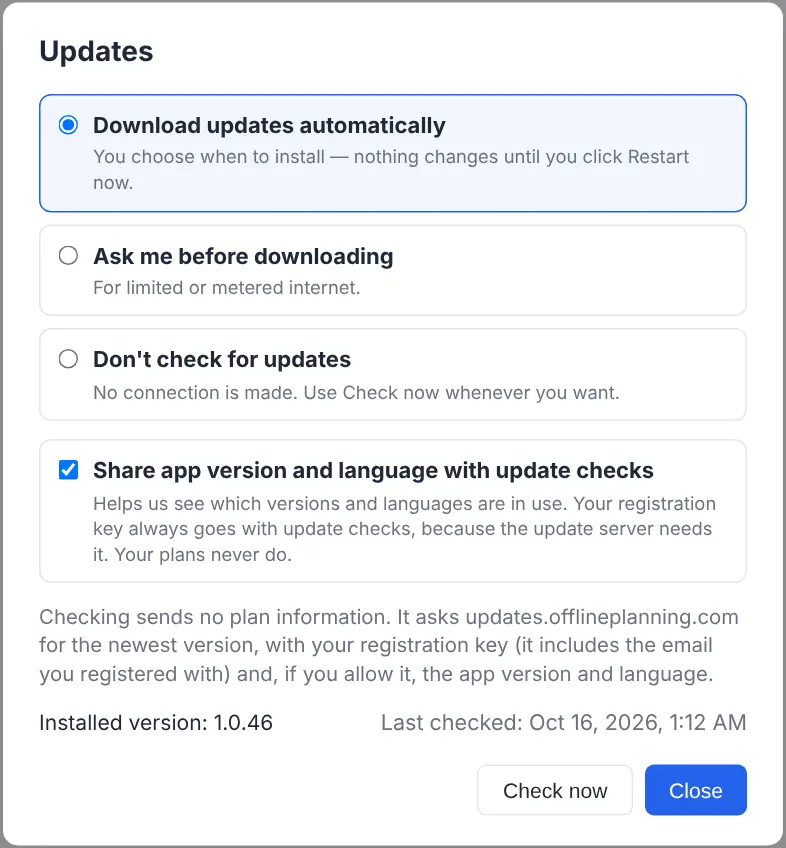
Check for updates now
Choose Help → Check for updates. If you already have the newest version, the app says The app is up to date with your version. If the check fails (for example, you are offline), it says so and offers Try again. A check that runs on its own in the background stays silent when you are offline.
Important fixes
Once in a while a release fixes something important.
- A red banner says An important fix is available. The app keeps working. Install the update when it suits you, ideally soon.
- The Update required screen appears only for a serious problem. It says which version fixes it and offers Update now and Back up everything…. If the update can't be downloaded, check your internet connection and try again.
The app shows these only after it has checked online. When you are offline or have updates turned off, it never blocks you.
Your registration key
The app is free. A free registration key, which starts with RN1-, tells the update server that your copy is registered. You get it with the download link at offlineplanning.com.
- The first time the app starts, it asks for the key once. Paste it and click Continue, or click Activate in the app on the download page. If you already copied the key, the app fills it in and shows who it is registered to.
- The key is checked on your computer. There is no account and no password.
- Lost your key? on that screen opens offlineplanning.com, where you can get it again.
Help → Registration…
This dialog shows Registered to with your email address and the date the key was entered on this computer.
- Copy key copies your key, for example to set up a second computer.
- Change key… lets you paste a new key. Your old key stays until you click Use this key.
Restoring a backup or importing a plan never changes your key.
Key banners
If the update server can't accept your key, the app keeps working — only updates stop. A banner explains what to do:
| Banner | Buttons |
|---|---|
| "Your registration key can't get updates. The app keeps working — only updates stop." | Get a new key (opens offlineplanning.com) and Change key… |
| "Updates need a registration key. The app keeps working — only updates stop." | Enter a key… and Get a free key |
After you enter a good key, the app checks again and the banner goes away.
Privacy: what is sent and what isn't
Your plans never leave your computer. Choose Help → Privacy & data to read the same summary in the app.
| Sent | When | What |
|---|---|---|
| Update check | At start, every 12 hours, or when you click Check now (never when updates are off) | Your registration key (it includes the email you registered with) and, if you allow it, the app version, language and computer type |
| Medicare plan rates | Only when you ask for county rates in Healthcare | A state and county code |
| Feedback | Only when you choose Help → Send feedback… | Opens a form in your browser with your app version, computer type and language. You type the rest |
Never sent: your plans, numbers, names, notes, or anything in them. The AI Advisor runs on your computer; the app never uses cloud AI models. See AI Advisor.
Example: the Rivera family on a metered connection
The Riveras use a phone hotspot at their cabin.
- Alex opens Help → Update settings… and chooses Ask me before downloading.
- A few weeks later, a banner says a new version is available. Alex clicks Later at the cabin.
- At home, Alex chooses Help → Check for updates, clicks Download, then Restart now.
- When the app opens again, Alex clicks What's new to read the release notes.
Good to know
- The beta channel is only for invited testers; most people never see it.
- An update changes the app, not your plans. Your data stays in the same place.