Offline AI Advisor
The Offline AI Advisor reads your plan and writes an analysis or answers your questions in plain language. It runs on your own computer, so your plan stays with you. This page explains what it does, how to use it, and how to set it up or remove it.
What it does
The AI Advisor uses Ollama, a free program from another company, and an AI model that you download once. Both run on your computer. When you ask for an analysis, the app sends a summary of your plan to that local model: ages, income, expenses, accounts, Social Security, pensions, shortfalls, taxes and the year-by-year results. The answer appears word by word as the model writes it.
Important: AI answers can be wrong, out of date or incomplete. They are for information only and are not financial, tax or legal advice. Check important points with a qualified advisor. Every answer starts with this reminder.
Where to find it
The 🤖 Offline AI Advisor section is at the bottom of the plan editor. Click ↓ Offline AI Advisor in the row of links under the header.
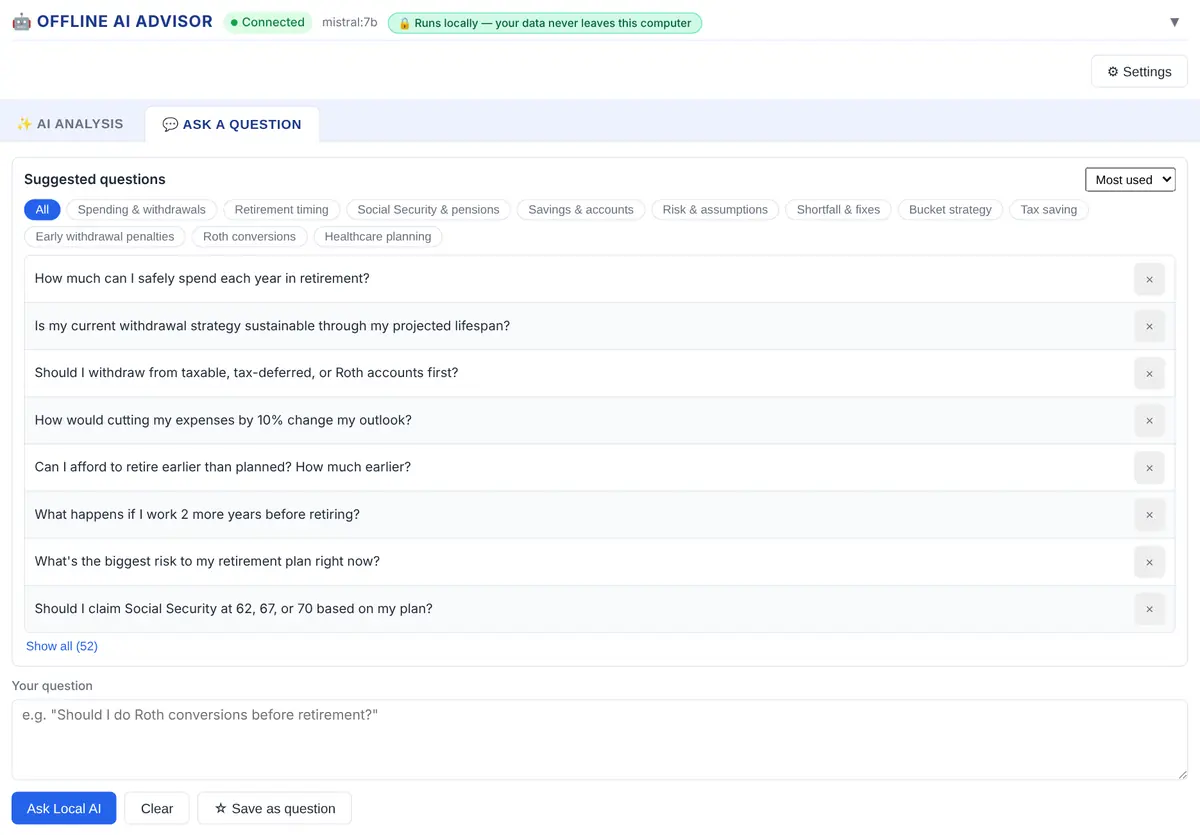
The section heading shows:
- The status: Connected, Offline or Checking…. The app checks again every 30 seconds.
- The model in use, for example "mistral:7b".
- A privacy badge (see below).
Your privacy
- 🔒 Runs locally — your data never leaves this computer — the normal badge. Ollama is on this computer.
- Your plan is never sent to an Ollama cloud model. Ollama can also run some models on its own servers; the app never lists, recommends or uses those. If such a model is chosen, the app stops before sending anything and tells you to pick a model that runs on your computer.
- When the app installs Ollama for you, the box Keep the AI on this computer only (recommended) is ticked. It keeps Ollama's cloud features off.
- If you point the app at Ollama on another computer (in AI Advisor Settings), the badge changes to ⚠️ Runs on another computer — your plan is sent there. A note above the results says "Your plan is sent to address for AI answers. That address is not this computer."
Get an analysis
- Open the ✨ AI Analysis tab.
- Choose an Analysis Type.
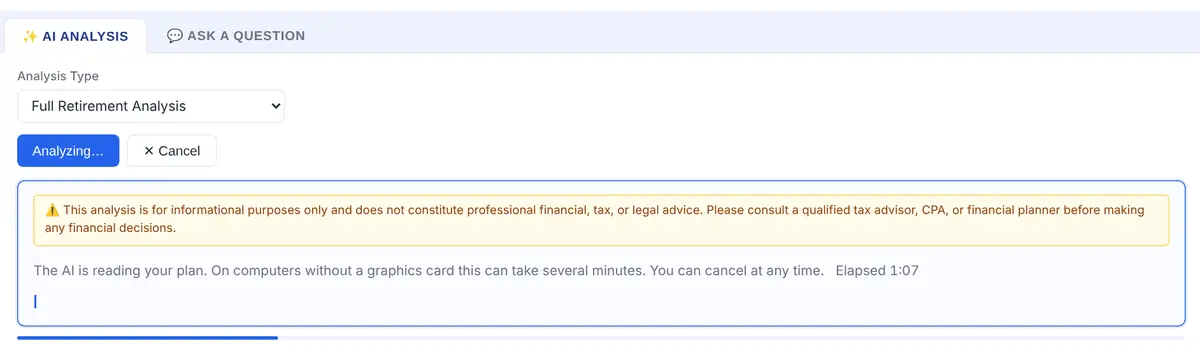
- Click ✨ Run Offline Analysis. The button reads Analyzing… while the model works.
| Analysis Type | What it looks at |
|---|---|
| Full Retirement Analysis | The whole plan. |
| Tax Optimization | Ways to lower lifetime taxes. |
| Inflation Protection | How well the plan holds up to rising prices. |
| Savings Gap Analysis | Whether you are saving enough. |
| Social Security Timing | When each person could claim. |
| Withdrawal Strategy | Which accounts to draw from, and when. |
| Healthcare Planning | ACA, Medicare, IRMAA and long-term care. |
| IRS Penalty Review | Penalties and how to avoid them. |
| Question Only | Your plan, with no built-in topic. |
Ask a question
- Open the 💬 Ask a Question tab.
- Type in Your question, for example "Should I do Roth conversions before retirement?".
- Click Ask Local AI.
Above the box, the question picker shows Suggested questions. As you type, it shows Matching saved questions. Click one to fill the box. Some built-in questions have a Read answer button that opens a written explanation at once, without the AI.
To keep a question for next time, click ☆ Save as question. It changes to ★ Saved and appears in the picker, marked "mine". You can sort the picker by Most used, A–Z or Newest, and edit, delete or hide questions. Restore defaults brings back built-in questions you hid.
While you wait
A local model can take a while, especially on a computer without a graphics card. Until the first words appear you see:
"The AI is reading your plan. On computers without a graphics card this can take several minutes. You can cancel at any time." with Elapsed and a timer.
There is no time limit. Click ✕ Cancel at any time to stop. Cancel stops the model too, so your next question starts right away.
After the answer
- 📋 Copy puts the answer on your clipboard.
- 🗑 Clear empties the answer box.
- Each answer is saved under Past Analyses, with its type and date. Click one to read it again. Click × to delete it (you are asked to confirm).
- Saved analyses appear in the plan's PDF report. See PDF report.
AI Settings
Click ⚙ Settings to open AI Advisor Settings.
| Setting | What it does |
|---|---|
| Model | Which AI model to use. Models marked "✓ installed" are ready. For another one, click Install now. |
| Ollama Host URL | Where Ollama runs. Default: http://localhost:11434 (this computer). |
| Temperature: | Lower = more focused, higher = more creative. 0.3 is recommended. |
| Model | Description in the app | Download |
|---|---|---|
| mistral:7b | Recommended — fast, works on most computers | about 4.1 GB |
| llama3.2:3b | Lightweight — for computers with less than 8 GB RAM | about 2.0 GB |
| qwen2.5:14b | Best quality — slow without a graphics card (10+ min per analysis) | about 9.5 GB |
| deepseek-r1:14b | Step-by-step reasoning — slow without a graphics card | about 9.0 GB |
Under the model you see its license (Model license: with a link, and the Acceptable Use Policy where there is one). Llama models also show Built with Llama, as Meta requires. A note says the AI Advisor uses Ollama, made by another company, and that we are not affiliated with Ollama or the model makers. All licenses opens Help → About & licenses.
Run Diagnostics checks each step of the connection if something doesn't work. Click Save Settings when you are done.
Remove the AI Advisor
AI models take 2 to 10 GB of disk space each. To free it:
- Open ⚙ Settings and find Remove AI Advisor.
- Click Choose what to remove….
- Tick the models to remove. Models the app downloaded are marked "downloaded by the app".
- If the app installed Ollama, you can also tick Also uninstall Ollama, the AI engine (the app installed it). This is possible once all its models are ticked.
- Click Remove selected (size), then Yes, remove.
Tip: If you plan to uninstall the app, remove the AI Advisor first. An Ollama you installed yourself is never removed.
Set it up (again)
When Ollama is not running, the section says AI advisor is offline. with 🤖 Set up AI features. Click it to open the guided setup. It downloads and installs Ollama and the model, with progress, speed and time left. You can Cancel and Resume later; what is downloaded is kept. Click Retry to check again.
If Ollama runs but the model is missing, you see AI model not installed. with an Install button, or Use … instead for a model you already have. See Install for computer requirements.
Example: the Rivera family
- Open the Rivera Family Plan and go to ↓ Offline AI Advisor.
- Check the status says Connected.
- Choose Healthcare Planning and click ✨ Run Offline Analysis. The Riveras' plan uses ACA coverage before 65 in Oregon and Medicare after, so the answer can discuss both.
- Open 💬 Ask a Question and ask: "Is converting Alex's 401(k) to the Roth IRA from 62 to 66 a good idea for us?"
- Click ☆ Save as question to keep it.
- Compare what the AI says with the Roth Conversions impact card and the projection. The app's numbers are the reference; the AI explains them.