A tour of the app
This page shows you around: the Home page with your plans, the header at the top of the window, the menu bar, and the plan editor from top to bottom. Read it once, and you will know where everything is.
The Home page
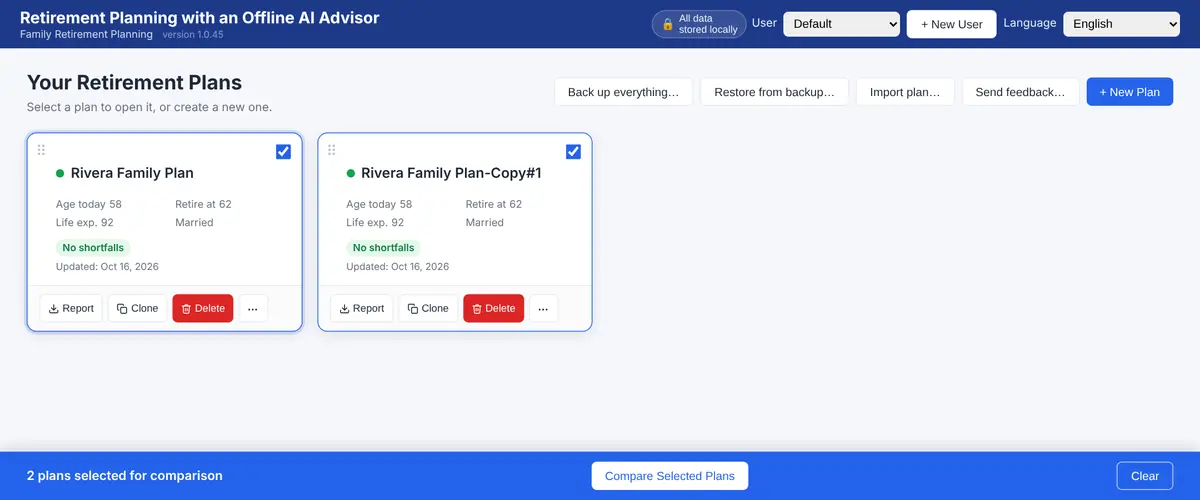
The app opens on the Home page, Your Retirement Plans. Click Plans at the top left of the plan editor to come back to it at any time.
Plan cards
Each plan has a card. Click the card to open the plan. The card shows:
| On the card | What it means |
|---|---|
| Colored dot | Green: no shortfall years. Amber: 1 to 5 years fall short. Red: more than 5. Point at the dot for the count. |
| Plan name | The name you gave the plan. |
| Age today · Retire at · Life exp. · filing status | The main ages and Married, Single or Head of Household. |
| Shortfall line | No shortfalls, or how many years fall short. |
| Updated | When the plan last changed. |
Buttons at the bottom of each card:
| Button | What it does |
|---|---|
| Report | Downloads a PDF report of the plan. See PDF report. |
| Clone | Makes a full copy of the plan, named like "Rivera Family Plan-Copy#1". Use it to try ideas without changing the original. |
| Delete | Deletes the plan after you confirm. This cannot be undone. |
| ⋯ | Opens Export plan… and Export for support… for that plan. See Plan files. |
Arrange and compare plans
- Drag to reorder: grab a card by its ⠿ handle and drop it where you want it. The order is kept.
- Compare: tick the box on 2 to 4 cards. A bar appears at the bottom — "2 plans selected for comparison" — with Compare Selected Plans and Clear. See Comparing plans.
Buttons at the top of Home
| Button | What it does |
|---|---|
| Back up everything… | Saves one backup file with every user and plan. See Backup and restore. |
| Restore from backup… | Replaces everything with a backup. |
| Import plan… | Brings in a plan file (.p4r) as a new plan. See Plan files. |
| Send feedback… | Opens a short form on offlineplanning.com in your browser. |
| + New Plan | Creates a new plan and opens it. |
Users
The top of the Home page also has User, + New User and, for any user but Default, ✕ User. Each user has their own plans — for example, you and a parent you help. A user called Default always exists and cannot be deleted. See Settings and menus.
The Language selector is here too: English, Tiếng Việt or Español.
The header
The header runs across the top of the plan editor.

First row:
| Item | What it does |
|---|---|
| Plans | Back to the Home page. |
| App name and version | The version number sits next to "Family Retirement Planning". |
| Plan dropdown | Switches to another plan of the same user. |
| + New | Creates a new plan. |
| Import… | Imports a plan file as a new plan. |
| Export… | Saves this plan to a file you can keep or move to another computer. |
| Export for support… | Saves a file only our support team can open, to report a problem. |
| Save | Saves the plan now. Changes also save by themselves. |
| Autosave status | Saving…, then Saved — or Save failed if something went wrong. |
| 🔒 All data stored locally | Shows how your data stays private, where it is stored, and a Back up everything… button. See Settings and menus. |
Second row:
- Alerts — opens Plan Alerts: penalties, tax traps and settings to check. When there is something new, the button reads ⚠ Alerts (3) with the count. See Plan Alerts.
- Section links — jump straight to a part of the plan.
The section links
| Link | Jumps to |
|---|---|
| ↓ Age | Ages and life expectancy |
| ↓ Inflation & Tax | Inflation, filing status and state tax |
| ↓ Income | Jobs, accounts, Social Security, pensions, assets, other income |
| ↓ Expenses | Your spending |
| ↓ Healthcare | Healthcare costs, Medicare and IRMAA |
| ↓ Withdrawals | Withdrawal method and sequences |
| ↓ Roth Conversions | Roth conversions |
| ↓ Year-by-Year Projection | Summary cards, chart and table |
| ↓ Account Balances | Each account's balance by year |
| ↓ Stress Test | Bad-market and high-inflation tests |
| ↓ Monte Carlo | Random-market simulation |
| ↓ Offline AI Advisor | The AI advisor |
A link opens its section if it is closed, scrolls to it and briefly highlights it.
The menu bar
Above the header, the window has a menu bar: File, Edit, View and Help.
- File — new plan, import and export, back up and restore, and Exit.
- Edit — undo, copy, paste and the other usual editing commands.
- View — zoom in and out, and full screen.
- Help — this guide, install help, questions and answers, feedback, updates, registration, privacy, and about.
Every item is listed in the menu reference.
Note: Export plan… and Export for support… need an open plan. On the Home page, open a plan first, or use ⋯ on its card.
The plan editor
The plan editor is one long page. The inputs come first, from top to bottom, then the results:
| # | Section | What you do there | Guide page |
|---|---|---|---|
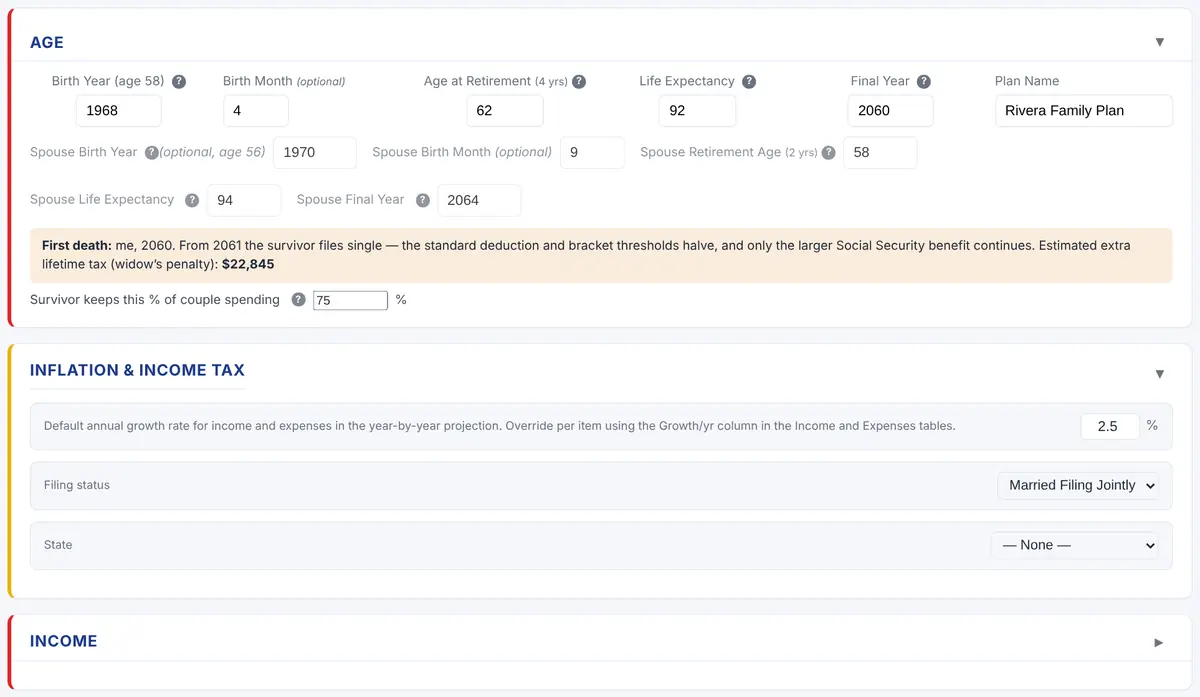
| 1 | Age | Birth years, retirement ages, life expectancy, plan name | People and ages |
| 2 | Inflation & Income Tax | Inflation rate, filing status, state income tax | Inflation and taxes |
| 3 | Income | Tabs: Employment, Investments & Accounts, Social Security, Pension, Sellable Assets, Other Income | Income, Accounts |
| 4 | Expenses | Your spending, now and later | Expenses |
| 5 | Healthcare | Coverage before 65, Medicare, IRMAA, long-term care | Healthcare |
| 6 | Withdrawals | Withdrawal method and sequences | Withdrawals |
| 7 | Roth Conversions | Moving money from pre-tax to Roth accounts | Roth conversions |
| 8 | Surplus and Extra Money | Where extra income goes | Surplus |
| 9 | Year-by-Year Projection | Summary cards, shortfall fixes, chart and table | Projection |
| 10 | Account Balances (Year-by-Year) | Each account's balance at the end of each year | Projection |
| 11 | Stress Test Scenarios | A market drop and higher inflation | Stress test and Monte Carlo |
| 12 | Monte Carlo Simulation | Hundreds of random market paths | Stress test and Monte Carlo |
| 13 | 🤖 Offline AI Advisor | Analysis and questions about your plan | Offline AI Advisor |
After you import a plan, a short banner at the very top says what came in and links to the report.
Open and close sections
Every section has a title bar with a ▼ arrow. Click the title or the arrow to fold the section to one line, and again to open it. Folding the sections you are not using keeps the page short.
The app remembers which sections you left open, even after you close it.
Tip: Healthcare has its own smaller regions — Household, each person, IRMAA and results — which fold the same way.
Saving: what happens automatically
- Plan fields (ages, inflation, expenses and so on) save by themselves a moment after you stop typing. The header shows Saving… and then Saved.
- Existing accounts save their changes by themselves too.
- New items — a new job, account, Social Security entry or pension — are saved when you click their 💾 Save button.
- The results (summary, chart, table, alerts) update after each save. You may see Loading projection… for a moment.
- If the header says Save failed, a message explains why. It often means a value is not allowed, for example a retirement age that is lower than your age today. Fix it and the plan saves again.
Good to know
- Point at a ? next to a field, or at a number in the table, to see a short explanation.
- The app checks for updates on its own. When one is ready, a banner under the header offers Restart now. See Updates.
- Drop a plan file anywhere on the window to import it.