Shortfalls and the Shortfall Wizard
A shortfall year is a year when your income does not cover your expenses. This page explains how the app shows shortfalls and how the Shortfall Wizard helps you test ways to close them.
What a shortfall year is
For each year the app adds up your income (paychecks, Social Security, pensions, account withdrawals, asset sales and other income) and your expenses (healthcare included). When expenses are higher, the difference is a shortfall.
A shortfall usually means one of these:
- Income stops before your retirement income starts (for example, a job ends early).
- Social Security or a pension has not started yet in the first years of retirement.
- Your accounts run out late in retirement.
Note: Very small differences (under $1) are ignored, so rounding never shows up as a shortfall.
Where to find it
You see shortfalls in three places in the Year-by-Year Projection:
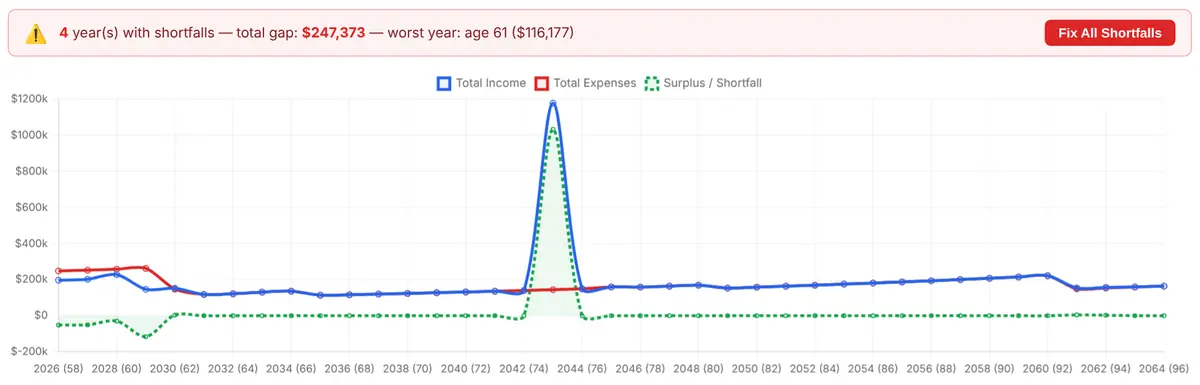
- A red banner under the summary cards: "N year(s) with shortfalls — total gap: … — worst year: age …", with a Fix All Shortfalls button.
- A red amount and a Fix button in the Surplus / Shortfall column of each shortfall year.
- The green Surplus / Shortfall line on the chart dropping below zero.
Open the wizard
- Click Fix All Shortfalls to work on every shortfall year, or click Fix in one row to focus on that age.
- The wizard opens in a window you can drag. It has four steps: Work Mode, Diagnose, Strategy and Review.
- Use Next → and ← Back to move between steps.
Nothing changes in your plan until you click the final button on the Review step.
Step 1: Work Mode
Choose how to apply the fix:
| Choice | What happens |
|---|---|
| Work on a copy (Recommended) | The app makes a copy of the plan and applies the fix to the copy. The original is never changed. Type a name under New plan name:. |
| Edit this plan directly | The fix goes into the current plan. Before it does, the app saves a copy of the plan as it was, named "plan name-BeforeFix". |
Tip: Work on a copy when you are exploring. You can compare the copy with the original later. See Compare plans.
Step 2: Diagnose
The wizard shows Shortfall Years, Total Gap and Worst Year. It groups the shortfall years into ranges and names a likely cause for each, for example:
- ⚠️ Pre-retirement income gap — income ended before your retirement age.
- ⚠️ Early-retirement income gap — some income has not started yet.
- ⚠️ Late-retirement account depletion — accounts run out late in life.
Tick the ranges you want to fix. You must select at least one.
Step 3: Strategy (the levers)
Pick an approach. Some appear only when your plan has what they need (for example a home to sell, or a savings account).
| Strategy | What you can change |
|---|---|
| ⏳ Delay Retirement | Move your retirement age later by a number of years. |
| ✂️ Reduce Spending | Set each expense group to between 50% and 100% of today's amount. |
| 🏠 Sell an Asset | Sell an asset (such as a home) at a chosen age. The wizard shows the Net: proceeds. |
| 💼 Work More Years | Move the end age of a job that ends before retirement. |
| 💰 Tap Savings/CD Early | Start drawing on savings, CDs or money-market sooner, and at a higher rate. |
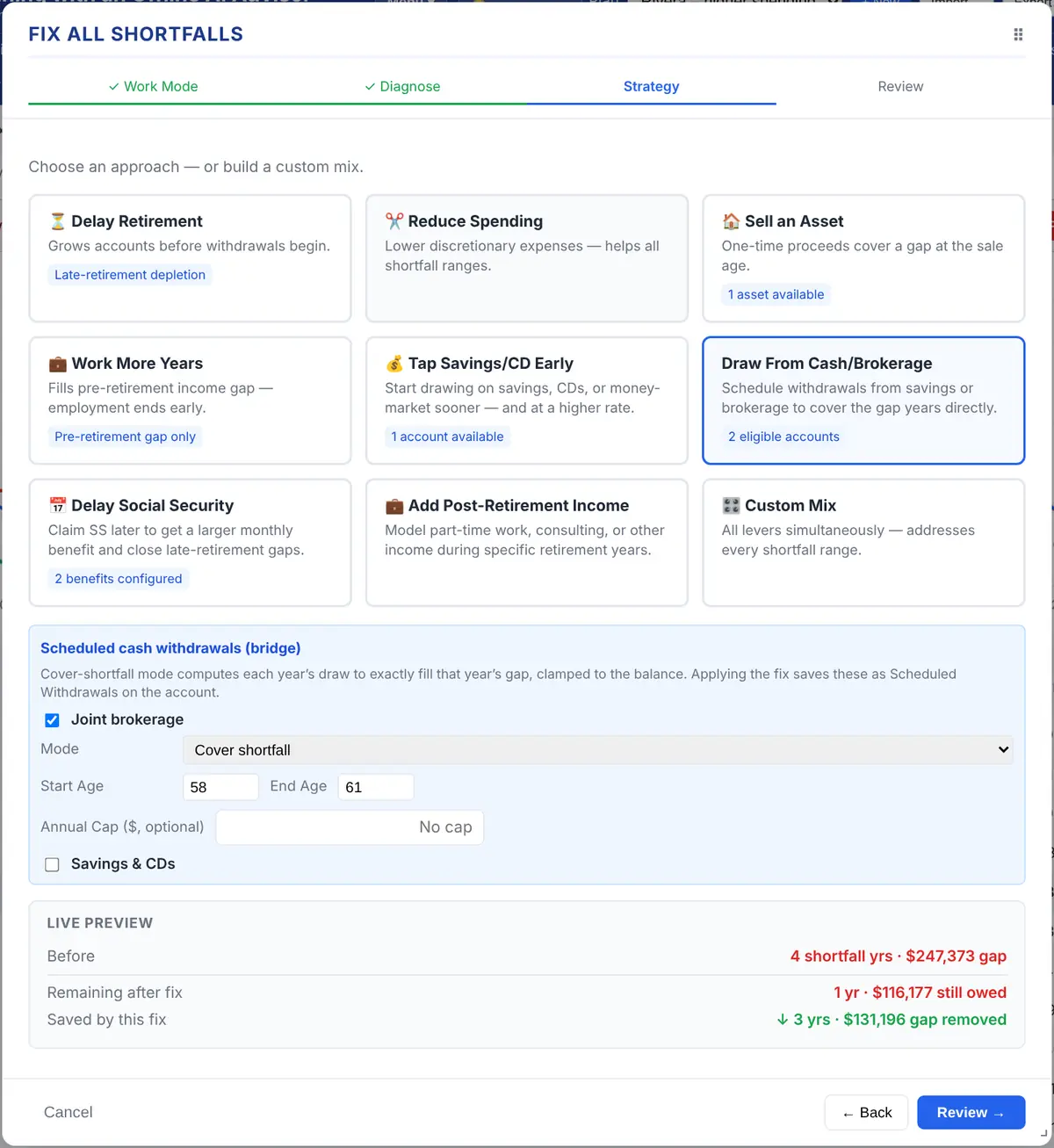
| Draw From Cash/Brokerage | Schedule withdrawals from savings or brokerage to bridge the gap years. "Cover shortfall" draws exactly what each year needs. |
| 📅 Delay Social Security | Claim Social Security at a later age for a larger benefit. |
| 💼 Add Post-Retirement Income | Add part-time work, consulting or rental income: label, amount per year, start age and end age. Click + Add. |
| 🎛️ Custom Mix | Use all the levers together, plus a withdrawal-rate override per account. |
As you move a slider, the Live Preview box updates within a second:
- Before — the shortfalls you have now.
- Remaining after fix — what is left, or ✓ All resolved.
- Saved by this fix — how much of the gap the change closes.
- ⚠️ New gaps — shortfalls the change creates in other years.
Step 4: Review — the side-by-side result
Click Review →. The wizard runs the full plan with your changes and shows:
- A table with Age, Before, After and Status (✓ Fixed or Still short) for each year.
- CHANGES THAT WILL BE APPLIED — a list of every change.
- Account depletion warnings: — accounts that would run out earlier than before.
- ⚠️ New shortfalls introduced: — ages that become short because of the fix.
Then click the button at the bottom:
- Save as "name" if you chose to work on a copy. The new plan is created and you see "Saved as …".
- Apply to Current Plan if you chose to edit this plan. You see "Changes applied to this plan."
To change something, click ← Back to Strategy.
Example: the Rivera family
Sam retires at 58, but Sam's pension starts at 62 and Social Security at 67. Those early years are where a gap would show first. Suppose the projection shows red years in that window.
- Click Fix on the first red year.
- Choose Work on a copy and name it "Rivera – bridge".
- In Diagnose, tick the early-retirement range.
- In Strategy, try Draw From Cash/Brokerage. Tick the Joint brokerage account and keep "cover shortfall".
- Watch Remaining after fix. If gaps remain, try 📅 Delay Social Security or ✂️ Reduce Spending in 🎛️ Custom Mix.
- Click Review →, check New shortfalls introduced, and click Save as "Rivera – bridge".
- Compare the copy with the original on the Home page.
Good to know
- The wizard tests changes on a copy of the numbers; the preview never saves anything.
- A cash bridge is saved as Scheduled Withdrawals on the account, labeled "Shortfall fix". You can edit or delete them later. See Withdrawals.
- Selling an asset or claiming Social Security later changes taxes and healthcare costs too. The Review step includes those effects.
- These are planning estimates, not financial advice.