Settings and menus
This page collects the app's settings in one place — language, users, tax, AI, updates, registration and privacy — plus keyboard shortcuts and a full list of the menu bar.
Where to find it
| Setting | Where |
|---|---|
| Language | Language selector on the Home page |
| Users | User, + New User and ✕ User on the Home page |
| Tax and IRS limits for a plan | Income section → ⚙ Settings; state tax in Inflation & Income Tax |
| AI advisor | Offline AI Advisor section → ⚙ Settings |
| Updates | Help → Update settings… |
| Registration key | Help → Registration… |
| Privacy | Help → Privacy & data, or the 🔒 All data stored locally badge |
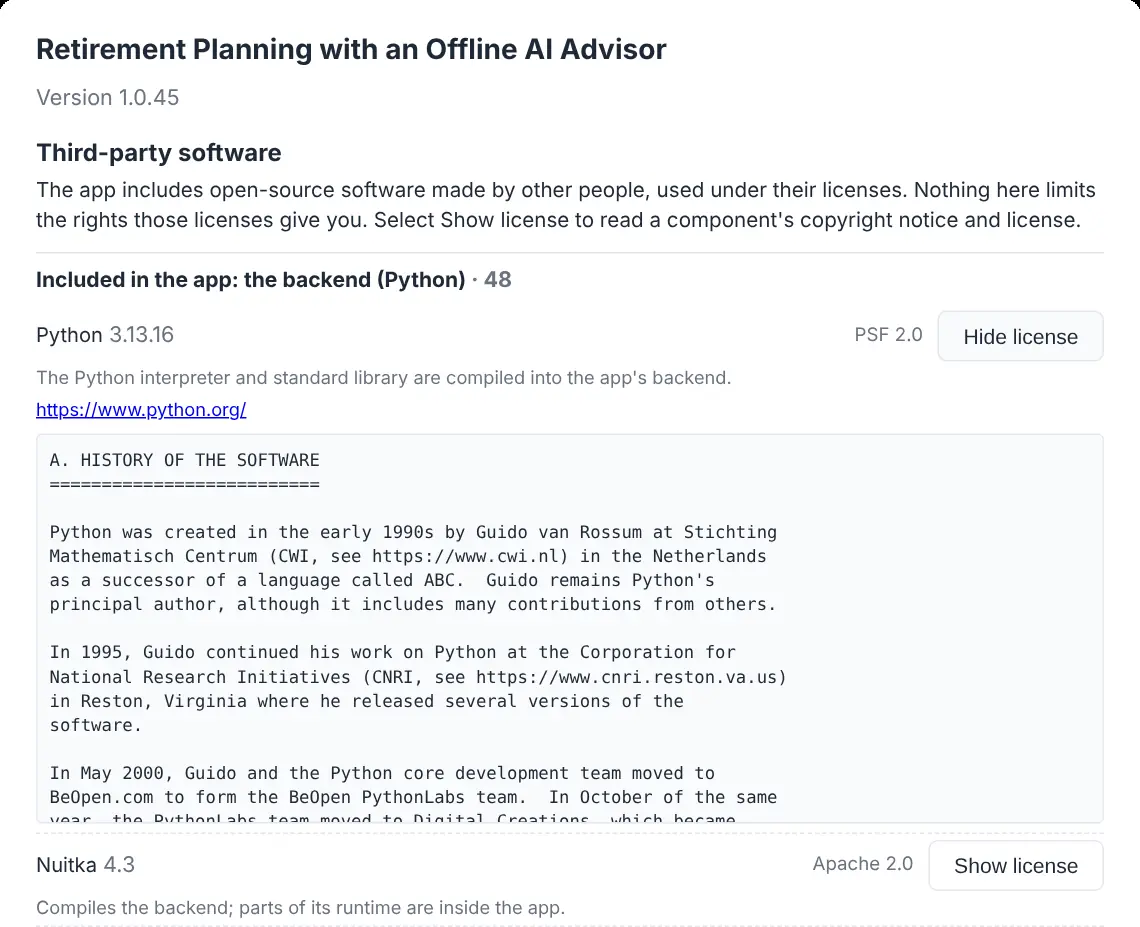
| Version and licenses | Help → About & licenses… |
Language
The app speaks English, Tiếng Việt and Español.
- Go to the Home page (click Plans at the top left).
- Choose a language in the Language selector at the top right.
Everything changes at once, including the menu bar. The choice is remembered on this computer. The language you pick in the setup wizard the first time is carried into the app.
Tip: This guide has its own language switch at the top, so you can read it in another language than the app if you like.
Users
A user is a person whose plans you keep in the app — you, or a parent you help. Each user has their own list of plans. Most people only need one user.
Add a user:
- On the Home page, click + New User.
- Type a Name and confirm. The app switches to the new user.
Switch users: choose a name in the User selector. The Home page shows that user's plans.
Delete a user:
- Select the user, then click ✕ User.
- Confirm "Delete user … and all their plans? This cannot be undone."
Important: Deleting a user deletes all of their plans. Export the plans you want to keep first (File → Export plan…). The user called Default always exists and cannot be deleted.
Tax settings for each plan
Each plan has its own tax and IRS-limit settings, so two plans can compare different states or assumptions.
- Income section → ⚙ Settings opens Income Settings, with two tabs: IRS Limits (401(k)/403(b) limits and catch-up contributions) and Tax Settings (tax year, standard deductions, capital gains).
- State income tax lives in Inflation & Income Tax.
A value you have not changed shows Follows 2026 law and updates when the law changes. A value you changed shows Custom, with the current law next to it and a Use current law button. Apply to all my plans… copies the settings to your other plans. Details are in Inflation and taxes.
AI advisor settings
In the 🤖 Offline AI Advisor section, click ⚙ Settings to open AI Advisor Settings. There you choose the Model, see its license, and can Remove AI Advisor to free disk space. If the AI is not set up yet, the section shows 🤖 Set up AI features, which opens the setup wizard again. See Offline AI Advisor.
Updates
Help → Update settings… opens Updates:
| Choice | What happens |
|---|---|
| Download updates automatically (default) | The app downloads new versions in the background. Nothing changes until you click Restart now. |
| Ask me before downloading | The app tells you about a new version and waits. Good for limited or metered internet. |
| Don't check for updates | No connection is made. Use Check now whenever you want. |
Share app version and language with update checks (on by default) helps us see which versions are still in use. Your registration key always goes with update checks; your plans never do. Help → Check for updates looks right away. See Updates.
Registration
Help → Registration… opens Registration:
- Registered to your email, and the date the key was entered on this computer.
- Copy key — copies your key, for example to install the app on another computer.
- Change key… — paste a New registration key, then click Use this key. Your old key stays until you do.
The key is checked on your computer; it holds only the email you registered with. If an update check ever refuses your key, the app keeps working — only updates stop — and a banner offers Get a new key. See Install the app.
Privacy and your data
Help → Privacy & data, or a click on 🔒 All data stored locally in the header, opens Privacy & Data:
| Heading | What it says |
|---|---|
| Local database only | All plans and history are in a database on this computer. The panel shows where the file is. |
| No cloud, no tracking | No financial data goes to the internet. No account or login. |
| AI runs on your machine | The AI advisor runs through Ollama on your computer, never on a cloud model. |
| Optional network calls | Medicare plan rates from CMS.gov (only a state or county code is sent) and update checks (your key, and if you allow it, the app version and language). Never your plans. |
The panel also has Back up everything…. See Backup and restore.
About & licenses
Help → About & licenses… shows the app's version and the open-source software it includes, grouped by part of the app. Click Show license to read a component's copyright notice and license. The AI group lists Ollama and the AI models: separate products, installed only if you set up the AI advisor. The same notices are in THIRD_PARTY_NOTICES.txt in the app's install folder.
Keyboard shortcuts
| Keys | What they do |
|---|---|
| F1 | Open this user guide in its own window |
| Ctrl+C / Ctrl+X / Ctrl+V | Copy / cut / paste |
| Ctrl+A | Select all text in a box |
| Ctrl+Z / Ctrl+Y | Undo / redo typing |
| Ctrl + / Ctrl − | Make everything bigger / smaller |
| Ctrl+0 | Back to normal size |
| F11 | Full screen on and off |
| Tab / Shift+Tab | Next / previous field |
| Esc | Close a menu, such as a plan card's ⋯ menu |
Tip: If the text is hard to read, press Ctrl + a few times, or use View → Zoom in.
Menu reference
File
| Item | What it does |
|---|---|
| New plan… | Creates a new plan for the current user and opens it. |
| Import plan… | Opens a plan file (.p4r) as a new plan. It never overwrites a plan you have. See Plan files. |
| Export plan… | Saves the open plan to a file, with a password if you like. |
| Export for support… | Saves the open plan as a file only our support team can open. Names and notes are replaced; the numbers stay. |
| Back up everything… | Saves every user and plan in one backup file (.p4rbak). See Backup and restore. |
| Restore from backup… | Replaces everything in the app with a backup, after you type REPLACE to confirm. |
| Exit | Closes the app. It makes an automatic backup first if something changed. |
Edit
| Item | What it does |
|---|---|
| Undo / Redo | Undo or redo typing in the box you are in. |
| Cut / Copy / Paste | The usual clipboard commands. |
| Select all | Selects all the text in the box you are in. |
View
| Item | What it does |
|---|---|
| Zoom in / Zoom out | Makes text and screens bigger or smaller. |
| Actual size | Back to normal size. |
| Full screen | Fills the whole screen; press F11 to leave. |
Help
| Item | What it does |
|---|---|
| User guide | Opens this guide in its own window (also F1). |
| Install help | Opens the install page on offlineplanning.com in your browser. |
| Questions & answers | Opens the questions-and-answers page on offlineplanning.com. |
| Send feedback… | Choose Report a problem, Request a feature or general feedback; opens the form on offlineplanning.com in your browser. The app itself sends nothing. |
| Report a problem… | With a plan open, offers Export for support… first so you can attach the file; otherwise opens the feedback choices. |
| Check for updates | Looks for a new version right away. |
| Update settings… | Opens Updates (see above). |
| Registration… | Shows or changes your registration key (see above). |
| Privacy & data | Opens the privacy panel (see above). |
| About & licenses… | The version and third-party licenses (see above). |
Good to know
- Settings such as the language and which sections are open are stored for you on this computer. A backup or a plan file carries your plans; a plan file can also carry your AI settings and preferences if you choose.
- The registration key is kept apart from your plans, so restoring a backup or importing a plan never changes it.