PDF report
The PDF report puts a whole plan on paper: your inputs, the year-by-year projection with a chart, healthcare and Medicare costs, and your saved AI analyses. Use it to review your plan away from the screen, or to bring to a meeting with your advisor.
Where to find it
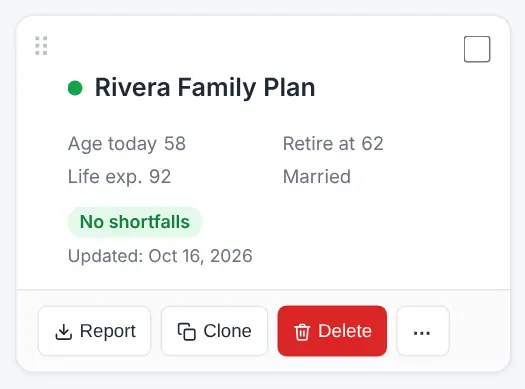
The report button is on the Home page, on each plan card.
- Go to the Home page (Your Retirement Plans). From a plan, click the house button at the left of the header ("Back to Plans").
- Find the plan's card.
- Click Report on the card.
Create the report
After you click Report, the app builds the PDF. This can take a few seconds for a long plan.
- In the desktop app, the PDF is saved to your Downloads folder as
retirement-plan-<number>.pdfand opens in your PDF viewer. - The number in the file name identifies the plan. Rename the file if you like, for example "Rivera Family Plan 2026.pdf".
Tip: The report uses the plan as last saved. The app saves your changes by itself within a second, so wait for the header to show it is saved before you go to the Home page.
What's in the report
The report opens with Retirement Planning Report, the plan name, who it was prepared for (the user's name) and the date. A summary strip shows Current Age, Retirement Age, Life Expectancy, Years to Retirement and Inflation Rate, plus the spouse's age and retirement age in a married plan. The plan's notes follow, if it has any.
| Section | What it contains |
|---|---|
| 1. Income Sources | Employment (employer, owner, salary, raise, start and end age, bonus), Retirement & Investment Accounts (type, owner, balance, growth rate, withdrawal strategy, projected balance at retirement, annual withdrawal), Pensions, Social Security (benefit at 62, 67 and 70, claiming age, monthly and annual benefit), Sellable Assets (value, appreciation, sale age, selling costs, capital-gains tax, net proceeds) and Other Income. |
| 1b. Social Security Claiming Age Optimizer | Included only when you have run the optimizer for this plan. See Social Security. |
| 2. Expenses | Your expense rows. |
| 3. Year-by-Year Projection | A chart of income, expenses and surplus, then the full table. Blue rows mark the start of retirement; yellow marks life expectancy. Amounts in red (parentheses) are shortfalls. |
| 3b. Healthcare Costs | Healthcare costs by year: pre-65 coverage, Medicare, out-of-pocket and long-term care. |
| 3c. Medicare Premiums and IRMAA | Coverage years with IRMAA, and IRMAA and Medicare notes. See IRMAA. |
| 4. AI Retirement Advisor Analysis | Every saved analysis for this plan, newest first, with the model used and your question. If there are none, it says "No AI analysis has been saved for this plan." |
Empty parts say so plainly, for example "No pension entries." or "No sellable assets."
All amounts are future dollars: expenses grow at the plan's inflation rate, and income is shown as projected. The report says so under the projection heading.
Print or share it
- Print: open the PDF in your PDF viewer and choose Print. The projection table is wide; landscape or "fit to page" usually reads best.
- Share: attach the PDF to an email or copy it to a USB drive like any other file.
Important: The report contains your real names, ages and balances. Share it only with people you trust, and delete copies you no longer need. The app itself never sends it anywhere.
Note: A report is a snapshot for reading. Someone else can't open it in the app. To give a plan to another computer, use File → Export plan…. To send a plan to our support team without your names, use File → Export for support…. See Plan files.
Example: the Rivera family
- Open the Rivera Family Plan. In the AI Advisor, run a Full Retirement Analysis so the report has one to include. See Offline AI Advisor.
- Click the house button to go to the Home page.
- On the "Rivera Family Plan" card, click Report.
- In the PDF, check 1. Income Sources: Alex's job at Northwind Logistics ($135,000) and Sam's at Lakeview School District ($82,000), the six accounts, Sam's Teachers' pension of $650 a month, and the home sold at 75.
- Turn to 3. Year-by-Year Projection and find the blue row: the year Alex retires at 62.
- Turn to 3c. Medicare Premiums and IRMAA to see the years, if any, when the Riveras pay extra Medicare premiums.
Good to know
- The report is a planning estimate, not tax, legal or investment advice.
- Want to compare two versions on paper? Clone the plan on the Home page, change the copy, and print a report for each. Or use Compare plans on screen.