Plan files: export and import
Save one plan to a file you can keep, email or open on another computer. Bring a plan file back in as a new plan, and send a safe copy to our support team when something looks wrong.
Where to find it
| To do this | Where |
|---|---|
| Save a plan to a file | File → Export plan…, the Export… button in the plan editor's header, or ⋯ → Export plan… on a plan's card on the Home page |
| Open a plan file | File → Import plan…, the Import… button in the header, Import plan… on the Home page, drag the file onto the app window, or double-click it in File Explorer / Finder |
| Send a copy to support | File → Export for support…, the header's Export for support… button, or ⋯ → Export for support… on a plan card |
A plan file ends in .p4r. It holds one plan: ages, income, accounts, Social Security, pensions, property, expenses, healthcare, Roth conversions, withdrawal plans and the plan's tax settings.
Note: A plan file is not a full backup. To save every user and plan at once, use Back up everything….
Export a plan
- Open the plan, or find its card on the Home page.
- Choose File → Export plan… (or Export… in the header, or ⋯ → Export plan… on the card).
- The dialog Export "Rivera Family Plan" lists what This file will contain: ages, tax settings, a count of jobs, accounts and other items, AI Advisor settings and App settings: custom FAQ questions, language, folded sections, dismissed alerts.
- Under Protection, choose one option (see the table below).
- If you chose a password, type it in Password and again in Confirm password. You can add a Hint (optional, NOT secret).
- Click Export… and choose where to save the file.
The card's ⋯ menu exports that plan, even when another plan is open in the editor. On the Home page, File → Export plan… asks you to open a plan first, or to use ⋯ on its card.
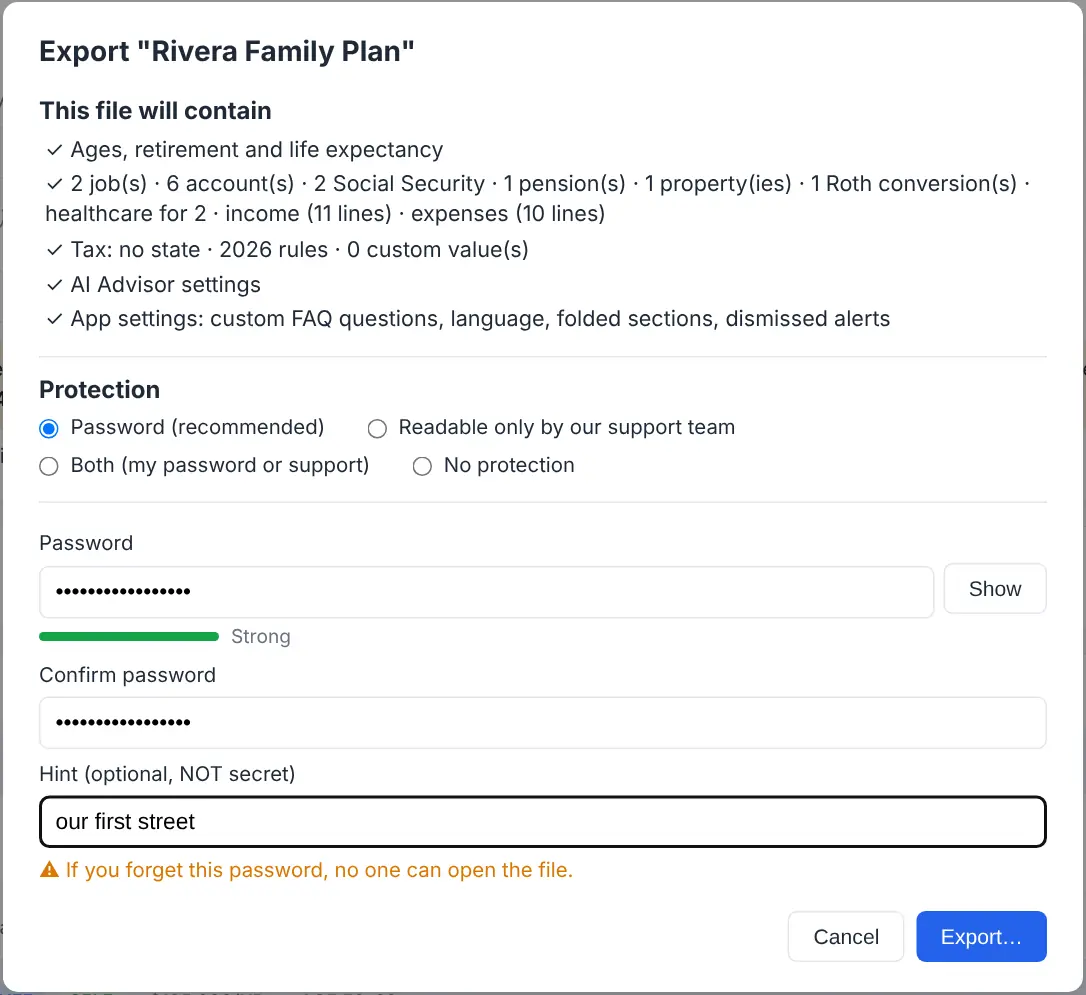
Protection choices
| Option | Who can open the file |
|---|---|
| Password (recommended) | Anyone who knows the password |
| Readable only by our support team | Only our support team |
| Both (my password or support) | You with your password, or our support team |
| No protection | Anyone who gets the file. The app warns: "Anyone who gets this file can read your plan." |
Choosing a password
- A meter under the password shows its strength: At least 8 characters, Weak, Fair, Good or Strong. Aim for Good or Strong.
- Show displays what you typed.
- The hint is stored as plain text inside the file, so anyone can read it. Never put the password itself in the hint.
Important: If you forget this password, no one can open the file — not even our support team. There is no reset.
Where the file is saved
When the export is done, the dialog says Saved with the file name and how it is protected. It shows the full folder under Saved to:.
- Show in folder opens that folder on your computer.
- Copy path copies the full location so you can paste it into an email or note.
The file name is the plan's name, for example Rivera Family Plan.p4r. Next time, the save and open dialogs start in the last folder you used.
Import a plan
An imported plan is always added as a new plan. Your current plans are never changed or overwritten.
- Choose File → Import plan… (or Import… in the header, or Import plan… on the Home page). You can also drop a
.p4rfile anywhere on the app window, or double-click it in File Explorer. - Choose file — pick the file. The wizard shows whether it is a Plan file or a Support file, when it was saved and with which version, and whether it is password protected.
- Unlock — if the file has a password, type it. The hint, if any, shows as Hint: "…".
- Review and import — check What's inside (ages, retirement ages, accounts and their total), the Compatibility report and the choices below.
- Under Import as, type the plan's name. Under For, pick the user the plan belongs to, or New user… and type the New user's name.
- Click Import plan. The app says Imported "…" and opens the new plan.
If you already have the same plan, the wizard says so: importing adds a separate copy.
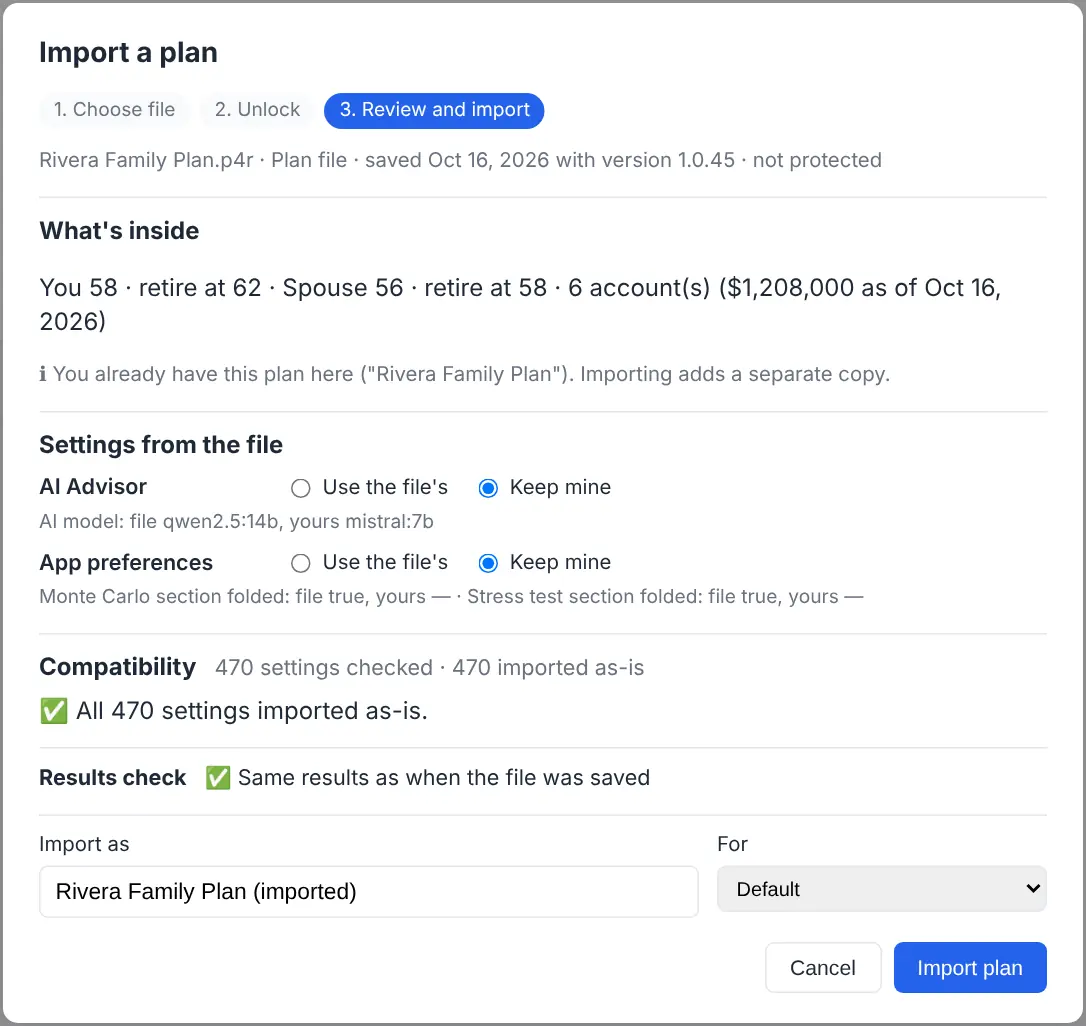
Settings from the file
When the file's own settings differ from yours, you choose for each group:
| Group | Choices |
|---|---|
| AI Advisor | Use the file's or Keep mine |
| Custom FAQ | Add or Skip |
| App preferences | Use the file's or Keep mine |
The wizard checks again each time you change a choice.
The import report
The Compatibility box says how many settings were checked. "All … settings imported as-is" means nothing needs your attention. Otherwise items are grouped:
| Group | What it means | What to do |
|---|---|---|
| Updated automatically | The value was brought up to date, for example a tax limit that changed since the file was saved | Nothing, unless you want to check it |
| Imported with a different value | The app used a different value than the file had | Read the reason and check the setting |
| Needs review | You must pick what to do, for example keep an old custom value or use current law | Pick a choice for the item |
| Not imported | The app could not bring this item in | Tick I've reviewed the items that won't be imported. before you can import. Updating the app may help |
| Not applied — your choice | You chose not to apply it | Nothing |
Each item has Go to setting after the import. Copy list copies the items as text.
The Results check compares the file's saved results with the new plan's results: Ending portfolio, Lifetime tax and Shortfall years. Small differences are normal when a new year has started, the app is newer, or tax tables were updated. The app names the main cause.
Tax-law values in older files
Tax limits, such as standard deductions and 401(k) limits, change every year.
- A value the file left at the law of its year now follows current law.
- A custom value you typed under older law goes to Needs review: choose Keep yours or Use current law.
- A file made under newer law than your app keeps its values.
People past their life expectancy
An old file may include someone who is now past the life expectancy in the plan. The wizard asks what to do:
| Choice | What happens |
|---|---|
| Extend life expectancy to … | Raises the life expectancy (to 100, or 110 if already 100 or more) so the plan keeps projecting |
| Plan for the survivor | For a couple when only one person is past: the plan continues for the survivor |
| View it as it was saved | Shows the results stored in the file, without recalculating — a saved view |
A saved view shows a banner at the top of the plan. Click Make it a living plan to raise the life expectancy and recalculate. If no years are left to project, the projection says so and asks you to raise the life expectancy in the Age section.
After the import: banner and report
The plan editor shows a banner: Imported from the file name, with counts such as "2 to review", or "everything imported as-is".
- View report opens the Import report with the same groups, Copy report and Report this problem.
- ✕ hides the banner for this import.
- Items that need attention also appear in Plan Alerts, with Go to setting.
Export for support
When something looks wrong, send our support team a copy of the plan. Only our support team can open it. The app does not send anything — you email the file yourself.
- Choose File → Export for support… (or Report this problem in an error message).
- Keep Leave out personal text ticked (recommended). It replaces:
- the plan name with "Support plan" and the date;
- your name, email and plan notes;
- employer, account, pension and property names with generic names;
- income and expense line names, such as "Income line 3";
- household event notes and custom FAQ questions.
- The numbers stay, so we can see the problem. Diagnostics (app and data versions, Plan Alerts, recent app log) are included; you can untick them.
- Optional: Also protect with my own password (to keep a copy).
- Click Save support file….
- Email the file to [email protected]. Copy support email address copies it. Or click Send it with a problem report to open the problem form on offlineplanning.com and attach the file there.
Support deletes the file when your issue is closed. See also Send feedback.
Clone or export?
| Clone Plan | Export plan… | |
|---|---|---|
| Result | A second plan on this computer, named like "Rivera Family Plan-Copy#1" | A file you can keep or move |
| Use it to | Try a what-if next to the original | Move a plan, keep a copy, share with a partner |
| Password | No | Optional |
Both copy every part of the plan. A clone does not copy dismissed Plan Alerts.
Example: the Rivera family
Alex and Sam want to look at their plan on Sam's laptop.
- On the desktop, they open Rivera Family Plan and choose File → Export plan….
- They choose Password (recommended), type a password the meter calls Strong, and add the hint "our first street".
- They save it to a USB drive and click Show in folder to check it is there.
- On the laptop, they double-click
Rivera Family Plan.p4r, type the password at Unlock, and click Import plan. - The banner says "everything imported as-is".
Good to know
- Opening a file never changes your existing plans.
- Plan files contain no AI history.
- A file from a newer version of the app may list items under Not imported. Update the app, then import again.