Install the app
This page walks you through getting the app, installing it on Windows, and the few screens you see the first time it starts. It also explains how to uninstall it.
What you need
| Computer | Windows 10 or Windows 11, 64-bit. The Mac version is not ready yet. |
| Internet | Needed to download the app, and the AI advisor if you want it. After that the app works offline. |
| For the AI advisor (optional) | 8 GB of memory (RAM) or more for the recommended model, about a 4 GB download. Computers with less memory get a lightweight model, about 2 GB. Answers come faster on a computer with a graphics card. |
| Account | None. You only register your email once to get the download and a free registration key. |
Get the app
The app is free. You get it from the website after a short registration.
- Go to offlineplanning.com and open the download page (Get the app free).
- Enter your Email, choose Windows under Computer, agree to the Terms of Use, and click Email me the download.
- Open the email on the computer where you will install the app. It may take a few minutes; check your spam folder too.
- The email holds two things:
- a download link, and
- your registration key, a long code that starts with
RN1-.
- Click the link. The download page shows your key again with a Copy button, a Download for Windows button and an Activate in the app button. Keep this page open — you will use it in a minute.
- Click Download for Windows. The file is named like
RetireNumbers-Setup-1.0.46.exe.
Tip: Registering on your phone is fine. Just open the email later on the computer where you will install the app.
Install it
- Open the downloaded file.
- Follow the installer's steps. It installs for your Windows user only and does not ask for an administrator password.
- When it finishes, you get a desktop shortcut and a Start-menu entry named Retirement Planning with an Offline AI Advisor.
If Windows or your antivirus warns you
A brand-new version can trigger a warning for a few days, until Windows and antivirus programs "get to know" it. The installer is code-signed, so you can check who made it.
- "Windows protected your PC" (a blue SmartScreen screen): click More info, check the publisher name, then click Run anyway.
- "Do you want to allow this app to make changes?": check the publisher, then click Yes.
- An antivirus program blocks the file: choose to allow or restore it, or email [email protected].
Important: Run the installer only if the publisher shown is OFFLINEPLANNING LLC (some versions show the developer's own name, De Tran). If it shows anything else, delete the file and download it again from the link in your email.
The first start
The first time the app opens, you see three short steps. Each one appears only once.
1. The setup wizard and the offline AI advisor
The setup wizard opens first, with the title Welcome to Retirement Planning with an Offline AI Advisor. You can pick the wizard's Language at the top.
- Click Get started →.
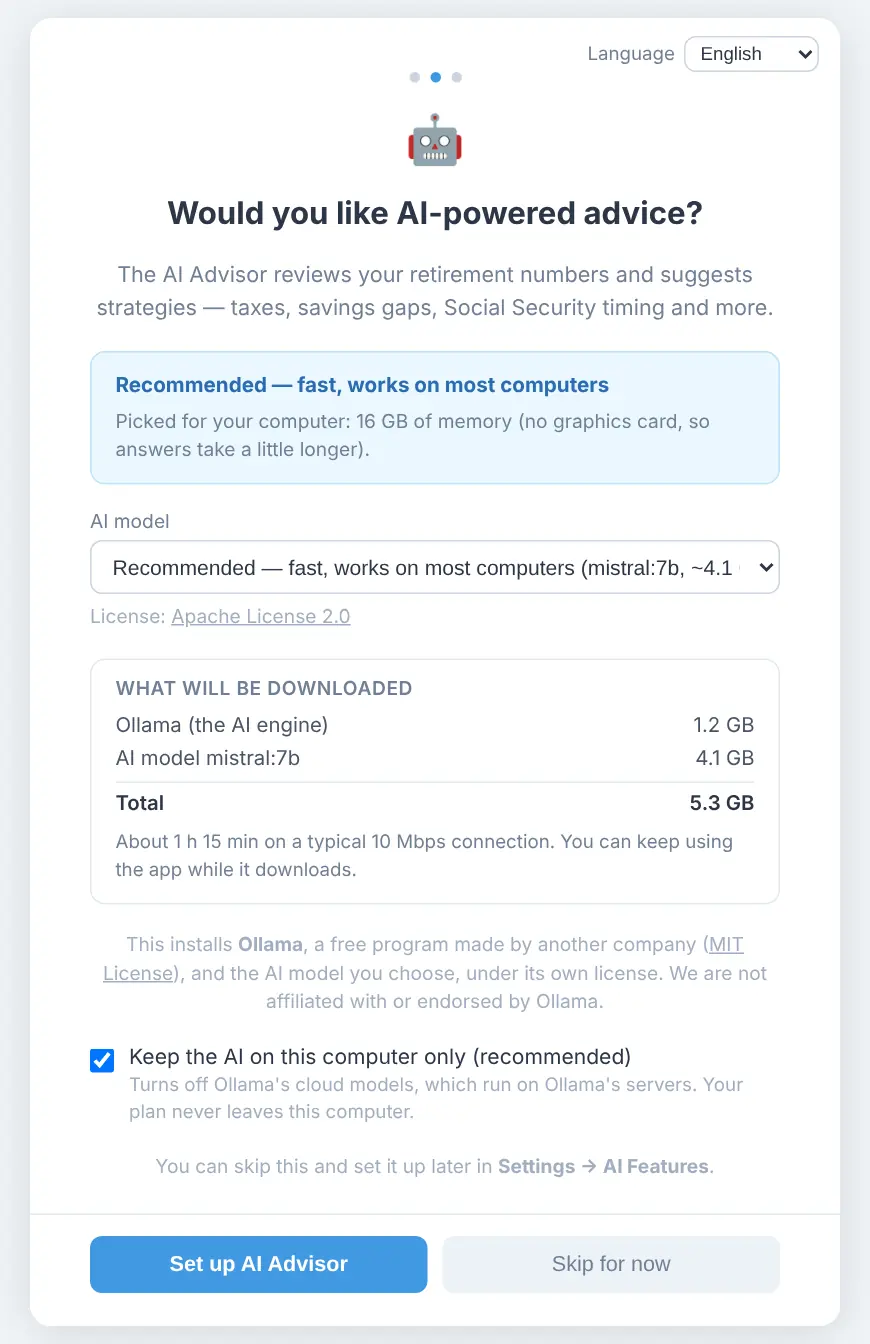
- The next screen asks Would you like AI-powered advice? The wizard checks your computer and picks an AI model for it. It says why, for example "Picked for your computer: 16 GB of memory".
- Under What will be downloaded it lists:
- Ollama (the AI engine) — a free program made by another company, under its own license. The app is not affiliated with Ollama.
- AI model … — the model it picked, with its size and license.
- Total, and about how long the download takes.
- Leave Keep the AI on this computer only (recommended) checked. It turns off Ollama's cloud models, which run on Ollama's servers, so your plan never leaves your computer.
- Click Set up AI Advisor, or Skip for now.
While it works, the wizard shows each step: downloading Ollama, installing it, starting the AI service, downloading and checking the model. You don't have to wait. Click Continue in the background and keep using the app; progress also shows in the Offline AI Advisor section. When it is done you see You're all set!.
Note: The AI advisor is optional. Everything else in the app works without it. If you skip it, you can set it up later: the Offline AI Advisor section shows a 🤖 Set up AI features button while the AI is not running. See Offline AI Advisor.
Cancel pauses the setup. What was already downloaded is kept, and Resume setup picks up where it stopped.
2. Enter your registration key
Next, the app shows Enter your registration key. The app is free; the key just tells it this copy is registered. The app checks the key on your computer — nothing is sent anywhere.
There are three easy ways to fill in the box:
- Copy the key first. If you copied the key from the email or the download page, the app finds it on the clipboard and fills it in for you. A note says "Filled in from the key you copied", and ✓ Registered to your email appears under the box.
- Use the download page. Go back to the download page and click Activate in the app. Your browser may ask whether to open the app; allow it. The key is filled in with the note "Filled in from your download page".
- Paste it. Copy the key, then click Paste (or type it into Registration key).
Check the email address under the box, then click Continue. You see "Thank you — the app is registered to …".
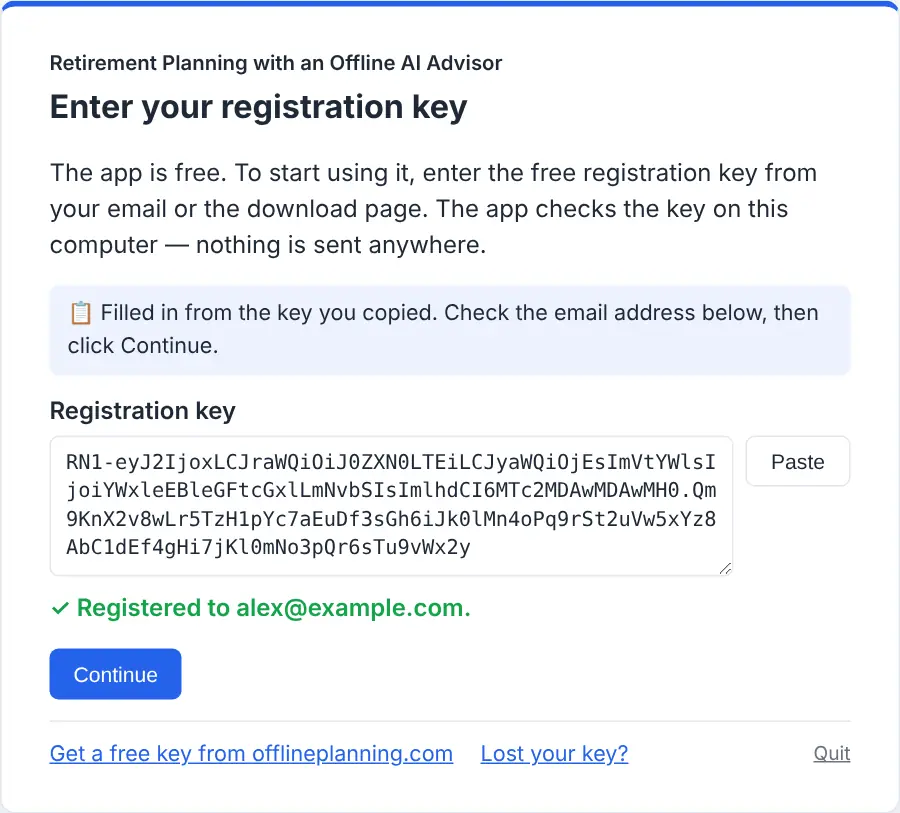
If the key is not accepted, the message tells you why — for example the key was not copied completely. Copy the whole key again, from RN1- to the end.
Links on the same screen:
| Link | What it does |
|---|---|
| Get a free key from offlineplanning.com | Opens the registration page in your browser. |
| Lost your key? | Opens a page where you enter your email; the key and a new download link are sent to it. |
| Quit | Closes the app. It asks for the key again next time. |
You can see or change the key later in Help → Registration…. See Settings and menus.
3. The privacy notice
Last, a short notice says Your data stays on your computer:
- Your plans and calculations are stored in a local database on this computer only.
- No financial data is ever sent to the internet.
- The AI advisor runs on your computer through Ollama and never uses Ollama's cloud models.
- The optional network calls are listed: public Medicare plan rates from CMS.gov, and checking for new versions. Update checks carry your registration key and, unless you turn it off, the app version and language — never your plans.
Click Got it — let's plan my retirement. You are now on the Home page, ready for your first plan.
Updates
The app checks for new versions by itself, downloads them in the background and installs one only when you click Restart now. Before installing, it backs up your data. You can change this in Help → Update settings…. See Updates.
Uninstall the app
- Open Windows Settings → Apps.
- Find Retirement Planning with an Offline AI Advisor and choose Uninstall.
What stays on your computer:
- Your plans. The uninstaller keeps your data, in case you install the app again. If you are moving to a new computer, first use File → Back up everything… and copy the backup file. See Backup and restore.
- Ollama and its AI models, if they are installed. Other apps may use them, so the uninstaller leaves them and tells you how much space they take. To remove only the models the app downloaded, do this before you uninstall: in the Offline AI Advisor section, open ⚙ Settings and use Remove AI Advisor.
Good to know
- Installing a newer version over an older one keeps all your plans. The app backs up your data before it upgrades anything.
- The app can run only once at a time. Opening it again brings the open window to the front.
- Double-clicking a plan file (
.p4r) or a backup file (.p4rbak) in File Explorer opens it in the app.