Compare plans
The Compare page puts two to four of your plans side by side, so you can see which choice leaves you better off. This page explains how to open it and how to read it.
Where to find it
Compare starts on the Home page, the list of your plans (Your Retirement Plans). To get there from a plan, click the house button at the left of the header ("Back to Plans").
Compare two or more plans
- On the Home page, tick the checkbox on each plan card you want to compare. The hint says "Select 2–4 plans to compare side-by-side."
- When two or more are ticked, a bar appears at the bottom: "N plans selected for comparison".
- Click Compare Selected Plans.
- The Plan Comparison page opens with one column per plan.
- Click Clear in the bar to untick all cards.
You can tick up to four plans.

Reading the comparison
Each plan's column heading shows its name, a colored dot and an Open plan → button. The dot is the plan's health: green "No shortfalls — plan is on track", orange "review recommended", or red "action needed". Hover it to read which.
The rows are grouped in four sections:
| Section | Rows |
|---|---|
| Demographics | Age today, Retire at, Life expectancy, Years to retirement, Years in retirement, Filing status, Spouse retires at (married plans only) |
| Financial Health | Shortfall years, Portfolio at retirement, Ending portfolio, Bear-market shortfall yrs, Monte Carlo ruin risk, Lifetime Medicare IRMAA, Years paying IRMAA |
| At Retirement | Annual income, Annual expenses, Surplus / shortfall, Est. federal tax, Effective tax rate |
| Income Sources | Social Security, Pension, Account withdrawals, Employment income, Other income |
"At Retirement" and "Income Sources" use each plan's first year of retirement.
Bear-market shortfall yrs comes from the stress test, and Monte Carlo ruin risk from the Monte Carlo simulation. See Stress test and Monte Carlo.
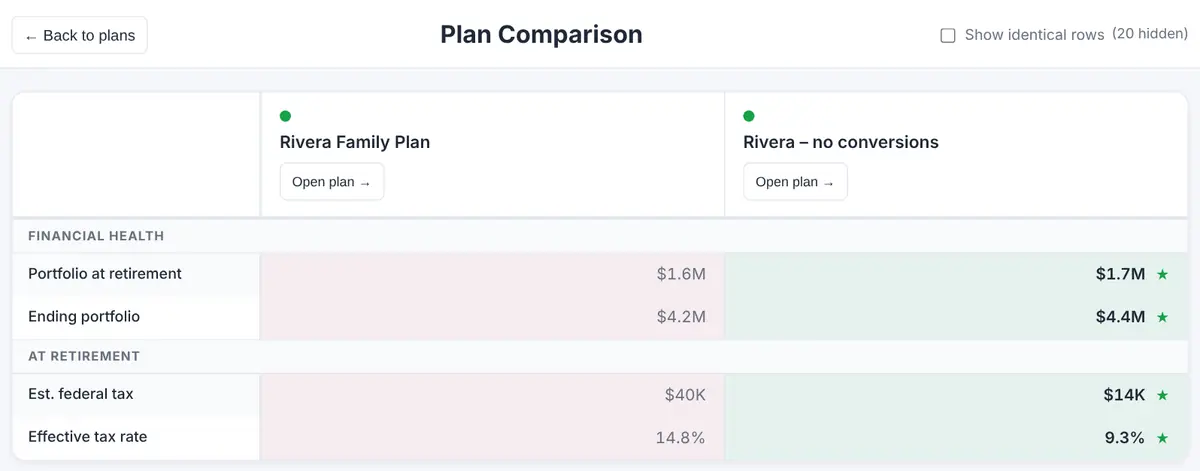
Green means better
For rows where one value is clearly better, the app marks it:
- The best value has a green background, bold text and a ★.
- The worst value is shown faded with a light red background.
For example, fewer Shortfall years is better, and a higher Ending portfolio is better. Rows that are simply facts, such as Filing status or the Income Sources rows, get no marks. When all plans have the same value, nothing is marked.
Note: "Better" looks at one row at a time. A plan can win on taxes and lose on ending portfolio. Weigh the rows that matter to you.
Show identical rows
By default the page hides rows where every plan has the same value, so the differences stand out. The checkbox label says how many are hidden, for example "Show identical rows (12 hidden)".
Tick Show identical rows to see every row again. The page does not remember this choice.
Back to plans
The toolbar at the top stays in view while you scroll. Click ← Back to plans to return to the Home page, or Open plan → under a plan name to open that plan.
Example: the Rivera family with and without Roth conversions
The Riveras convert part of Alex's 401(k) to the Alex Roth IRA from 62 to 66 ("Fill the 22% bracket"). Is it worth it? Compare the plan with a copy that has no conversions.
- On the Home page, click Clone on the "Rivera Family Plan" card. A copy appears, named "Rivera Family Plan-Copy#1".
- Open the copy. In the Age section, change Plan Name to "Rivera – no conversions".
- Go to Roth Conversions (↓ Roth Conversions) and delete the conversion. See Roth conversions.
- Go back to the Home page. Tick both Rivera cards.
- Click Compare Selected Plans.
- Look at Ending portfolio, Est. federal tax, Lifetime Medicare IRMAA and Years paying IRMAA. The ★ shows which plan does better on each.
Tip: The Roth Conversions section also has an impact card that shows lifetime tax with and without the conversions in one place. Compare is useful when you want to see every other number side by side as well.
Good to know
- Compare never changes your plans. It only reads them.
- If a plan was deleted, the page says "Plan(s) not found and excluded" and compares the rest. With fewer than two plans left it says "Not enough valid plans to compare."
- Any change you can make in a plan can be compared this way: retiring at a different age, another Social Security age, selling the home earlier, a different withdrawal method.
- Numbers are planning estimates, not tax or investment advice.
See also
- Roth conversions
- Stress test and Monte Carlo
- Shortfalls — the wizard can save its fix as a copy for comparing
- Plan files