Retirement Planning with an Offline AI Advisor — User guide
Welcome. This guide shows you how to build a retirement plan in the app, read the results and keep your plans safe. Start here if you are new.
What the app does
The app plans your money year by year, from today until your life expectancy. For every year it adds up:
- Income — salary, Social Security, pensions, account withdrawals, the sale of a home or business, and any other income.
- Spending — your housing, living and personal expenses, growing with inflation.
- Taxes — federal and state income tax, including how much of your Social Security is taxed.
- Healthcare — marketplace (ACA) coverage before 65, Medicare from 65, Medicare surcharges for higher incomes (IRMAA), and long-term care if you want it.
- Withdrawals — which accounts to draw from each year, in a tax-smart order, including required minimum distributions (RMDs).
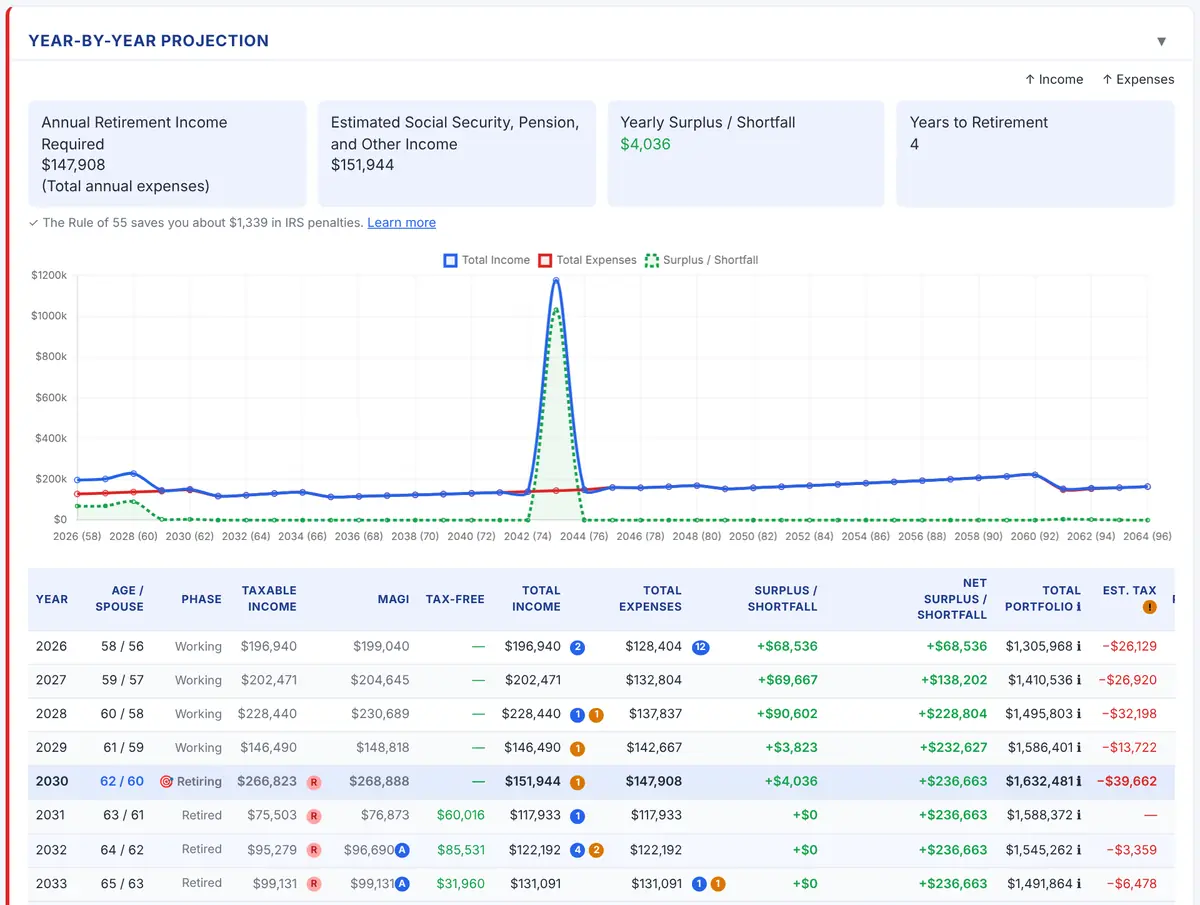
The result is a year-by-year table and chart. It shows whether your money lasts, which years fall short, and what your accounts are worth along the way. When a year falls short, the app helps you find a fix.
Everything stays on your computer
- Your plans are stored in a database on your own computer. There is no account, no login and no cloud.
- No financial data is ever sent to the internet.
- The app makes only a few optional connections: checking for new versions and, if you ask, looking up public Medicare and marketplace plan rates. Your plans are never sent. See Settings and menus.
An AI advisor that runs offline
The Offline AI Advisor reads your plan and suggests strategies — taxes, savings gaps, Social Security timing and more. It runs entirely on your computer through Ollama, a free program from another company. Your plan never goes to an outside AI service. Setting it up is optional. See Offline AI Advisor.
Who it is for
The app is for people and couples who want to see their own retirement clearly, without a spreadsheet. It is built for people about 50 to 75 years old who are not finance or computer experts. It works for:
- Singles and married couples, including a spouse who retires at a different age.
- People still working, people about to retire, and people already retired.
- Anyone who wants to try "what if" ideas — retire later, spend less, claim Social Security at 70 — and compare them side by side.
The app is free. It runs on Windows 10 and Windows 11 (64-bit).
How to use this guide
The guide has seven parts. Read Getting started first; use the rest when you need it.
| Part | What you will find |
|---|---|
| Getting started | Install the app, make your first plan in 15 minutes and take a tour of the screen. |
| Building your plan | Each input section in order: people and ages, inflation and taxes, income, accounts, Social Security, pensions and assets, expenses. |
| Healthcare | Healthcare costs before and after 65, IRMAA Medicare surcharges and long-term care. |
| Paying for retirement | Withdrawals, withdrawal sequences, the Rule of 55, Roth conversions and surplus and extra money. |
| Reading your results | The year-by-year projection, fixing shortfalls, stress test and Monte Carlo, comparing plans, Plan Alerts, the AI advisor and the PDF report. |
| Keeping your plans | Plan files (export and import), backup and restore, updates and settings. |
| Examples and help | Worked examples, questions and answers and a glossary of retirement terms. |
Keep the guide open while you work
- Open the guide from Help → User guide, or press F1 anywhere in the app.
- The guide opens in its own window. Put it next to the app and keep it open while you enter your plan.
- Use the search box at the top of the guide to find a topic, a label or a term.
- Use the language switch at the top to read the guide in English, Tiếng Việt or Español.
- Words in bold are the exact labels you see on the screen, so you can find them easily.
Tip: Many fields in the app have a small ? next to them. Point at it to read a short explanation without leaving the screen.
The Rivera family
Every example and picture in this guide uses the same fictional household, the Rivera family, in a plan called Rivera Family Plan. Following one family from start to finish makes it easier to see how the pieces fit.
| Alex Rivera | Sam Rivera | |
|---|---|---|
| Born | April 1968 | September 1970 |
| Job | Northwind Logistics, $135,000 a year, 3% raises | Lakeview School District, $82,000 a year, 2.5% raises |
| Stops working at | 62 | 58 |
| Life expectancy | 92 | 94 |
| Social Security a month (at 62 / 67 / 70) | $2,150 / $3,050 / $3,790 | $1,500 / $2,140 / $2,650 |
| Claims Social Security at | 67 | 67 |
- They are married filing jointly and live in Oregon. Inflation is set to 2.5%.
- Accounts: Alex 401(k) $610,000; Alex Roth IRA $95,000; Sam 403(b) $285,000; Joint brokerage $120,000; Savings & CDs $60,000; HSA $38,000.
- Pension: Sam has a Teachers' pension of $650 a month from 62.
- Home: worth $725,000; they plan to sell it at 75 and downsize. The mortgage is $2,100 a month until Alex is 66.
- Healthcare: included for both — marketplace coverage before 65, Medicare from 65.
- Withdrawals: the Optimal method.
Your own numbers will be different. Use the Riveras to see where things go, then enter your own.
Planning estimates, not advice
Important: The app gives planning estimates. It is not tax, legal, investment or medical advice. Tax law, Social Security and Medicare rules change, markets go up and down, and nobody knows how long they will live. Use the app to understand your choices and to prepare good questions. Before a big decision — when to claim Social Security, a Roth conversion, choosing Medicare coverage — check with a qualified professional and the official sources, such as ssa.gov, medicare.gov, irs.gov and healthcare.gov.
Getting help
- Look in Questions and answers and the Glossary.
- Help → Send feedback… opens a short form on offlineplanning.com in your browser to report a problem or ask for a feature.
- Email our support team at [email protected]. If something looks wrong in a plan, use File → Export for support… first and attach the file. It hides names and notes but keeps the numbers, so we can see the problem. See Plan files.
The app is published by OFFLINEPLANNING LLC. Website: offlineplanning.com.